Home page
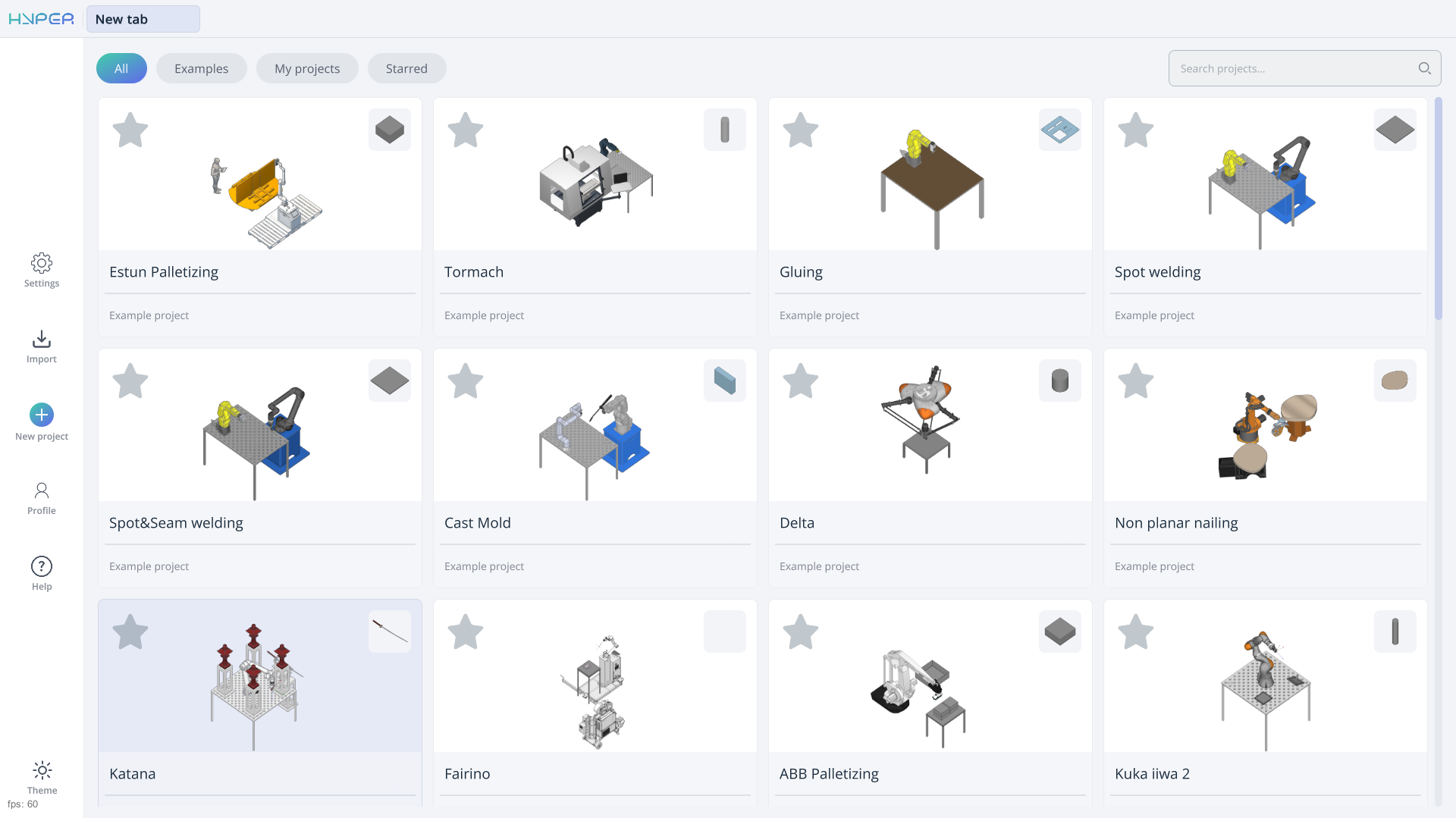
Application Area:
The home page provides the following functionalities:
project library management;
access to standard example projects;
creation of new projects;
import of existing projects;
access to the system’s basic settings and user profile;
access to tutorials and documentation;
switching between light and dark themes.
The project library occupies the main area of the home page. The All, Examples, My projects, and Starred filters are located above the project cards. The Search projects... field is in the upper-right corner. For details about the library, see Project library.
Buttons on the left navigation panel.
The main buttons are arranged vertically on the left side of the screen, from top to bottom:
Settings. Allows you to access the system’s basic settings.
Import. Allows you to open an existing project.
New project. Opens a page with two options for creating a project:
Create in MachineMaker. Launches MachineMaker, where you can prepare the machine assembly and then import it into ENCY Hyper.
Load .mma file. Allows you to select an existing assembly file in .mma format. The file can be prepared by the supplier or created in MachineMaker. See more
In MachineMaker, use «Save assembly to file» to save the assembly.
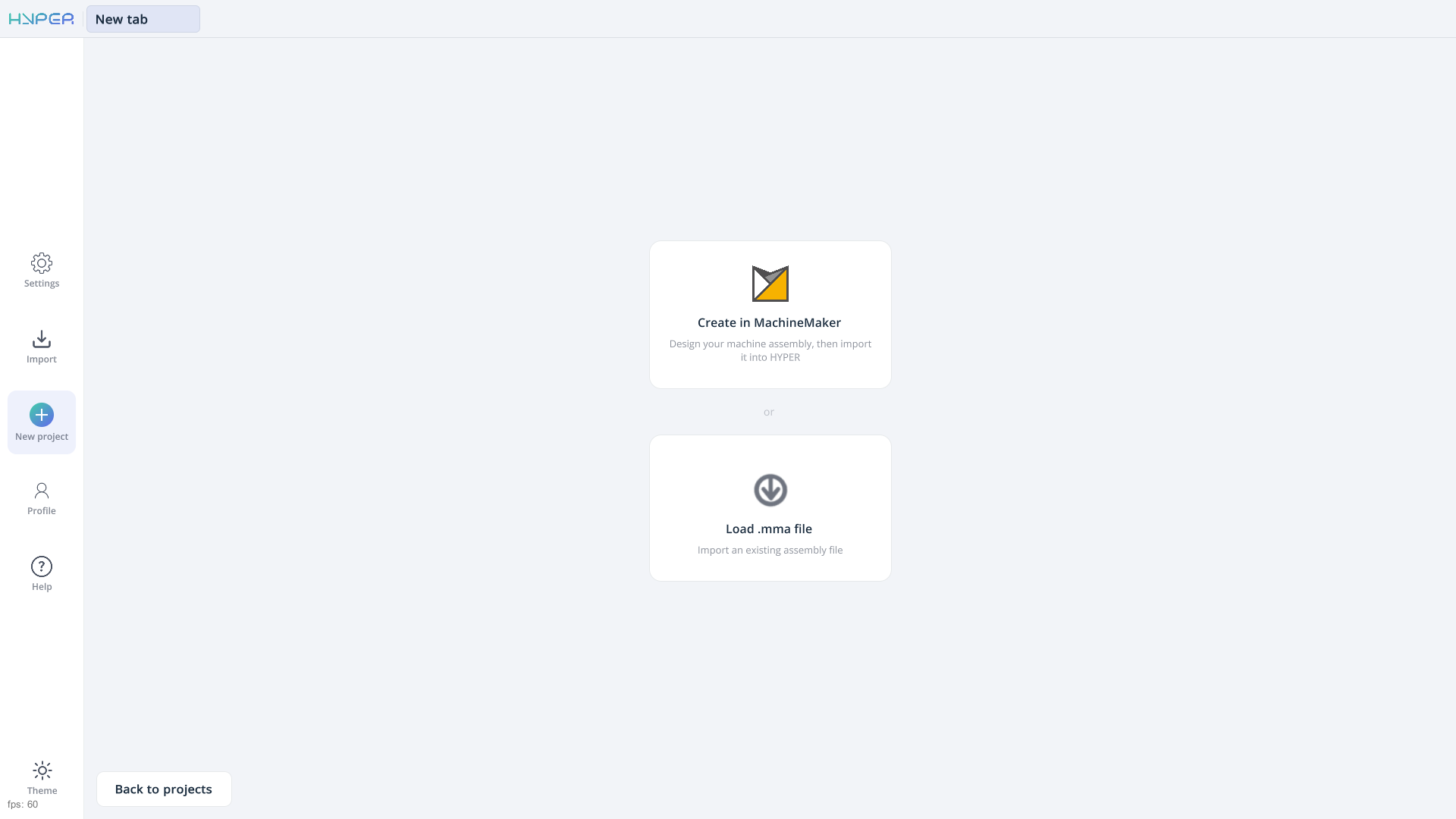
The Back to projects button in the lower-left corner of the main area returns you to the project library.
Profile. Opens the user profile. Depending on the system configuration, some features may be unavailable to certain user roles. If a feature is grayed out or missing, your user role may not have the required permissions.
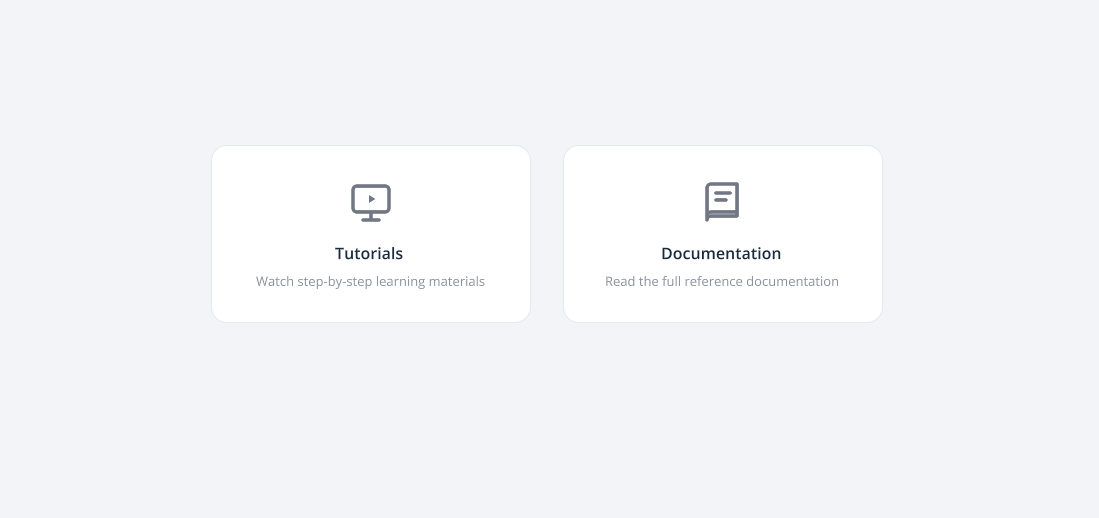
Help. Opens a page with two options:
Tutorials. Opens the page with ENCY Hyper training videos.
Documentation. Opens the reference documentation.
Button at the bottom of the left navigation panel.
Theme. Switches the interface between light and dark themes.
License and version information.
License information. Displays the remaining number of days on your license.
Version info. This information may be useful when demonstrating the app’s capabilities to others or when contacting technical support.