Programming Mode
Application Area:
Programming Mode represents the pivotal operational environment in which theoretical plans are executed and robotic systems become operational. It functions as a multifaceted control center—a dedicated workspace for automation management and system configuration.
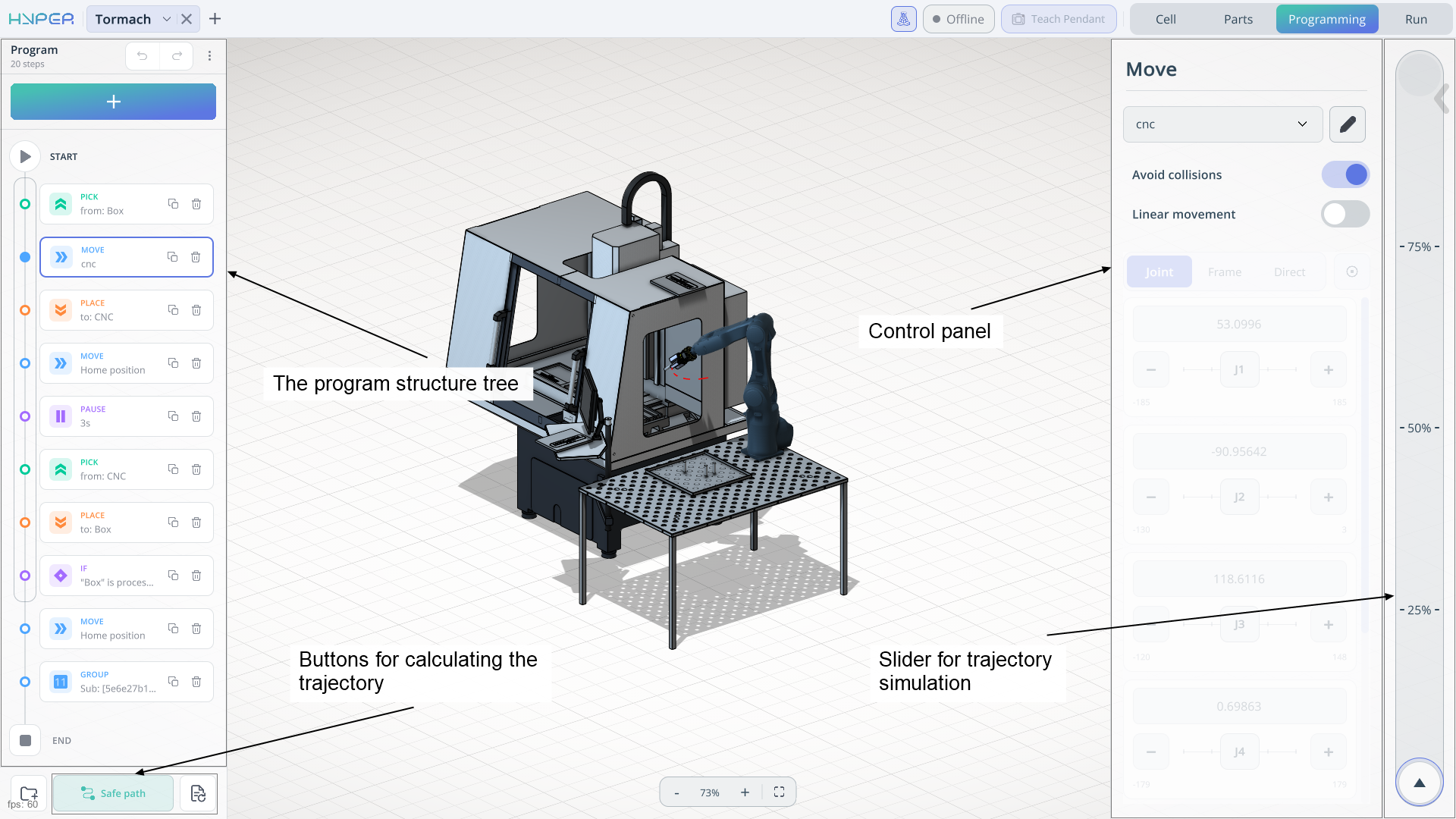
In Programming Mode, the Control Panel shifts to the right side of the screen and the Program Structure Tree is added.
Buttons for calculate the trajectory.
Quick calculation button. Calculates the trajectory without considering the checkboxes in collision avoidance commands.
Safe
Path
button. Computes trajectory with collision avoidance — only for commands where the flag is enabled.
Slider for simulation.
Simulate trajectory (speed controlled by slider).
Collision detection
Collision detection helps identify collisions between mechanisms and objects in your project. To enable it, open Project settings > Main > Simulation and turn on the Collision detection toggle.
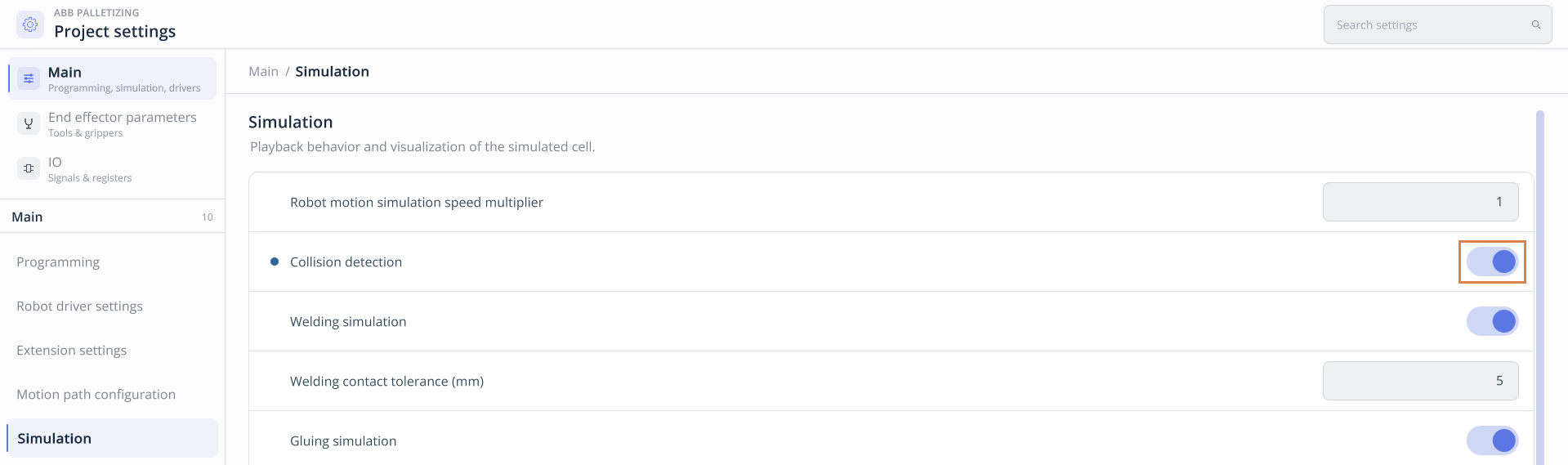
After you enable this option, ENCY Hyper builds a collision model for your project. A progress indicator appears at the top of the screen. Wait for the model to finish building before checking for collisions.

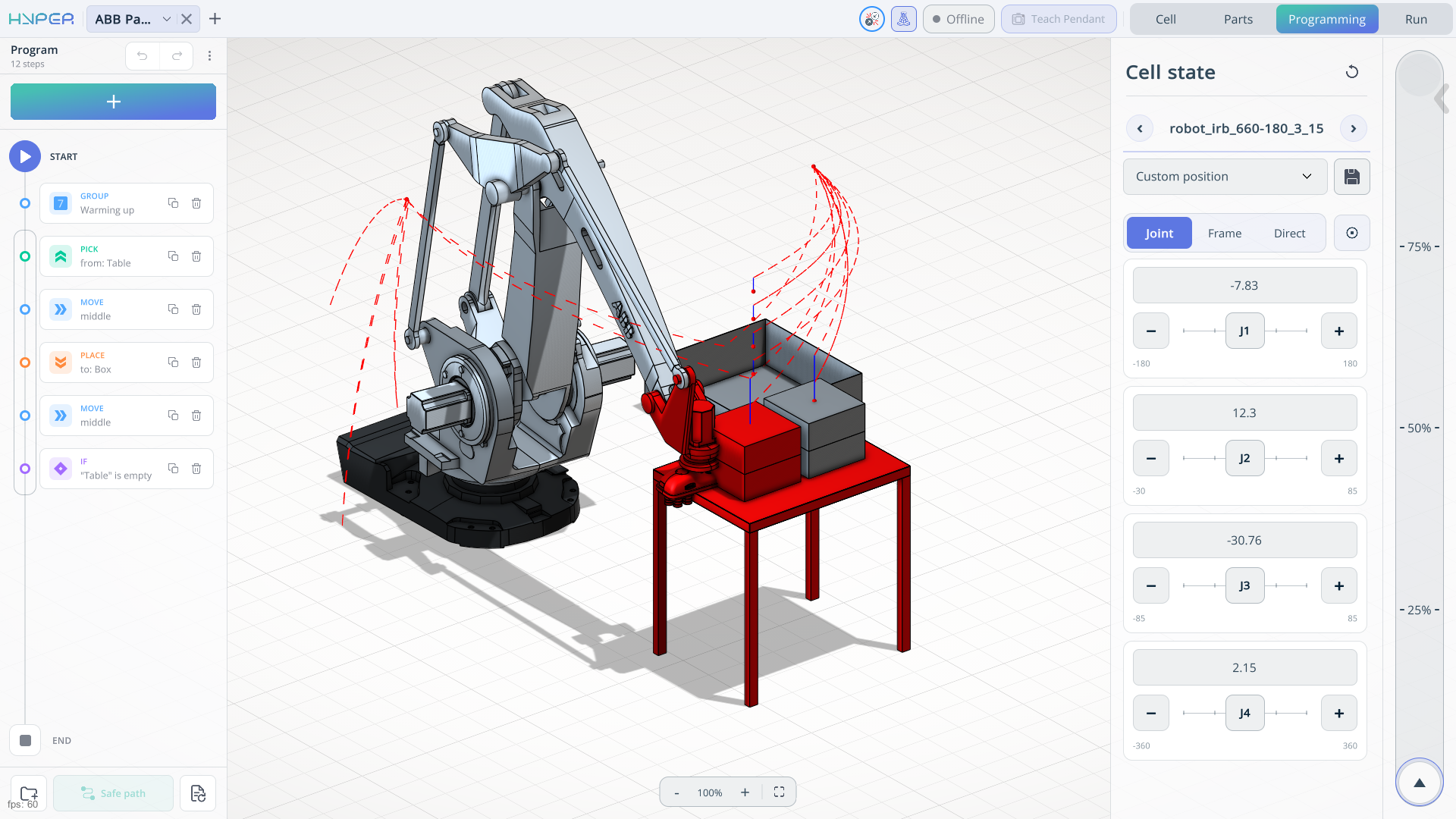
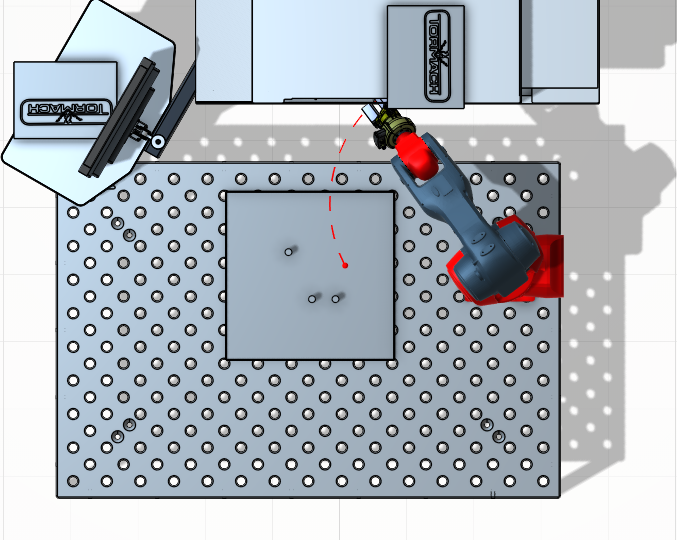
Once the model is ready, simulate the robot movements to check where collisions may occur between mechanisms and objects. Colliding components are highlighted in red in the graphics window, as shown below.
The Program Structure Tree consists of:
Buttons:
Add a command.
Allows you to add basic commands.
Clear.
To clear all commands and restart from the initial state.

Creates a Group.
Commands can be organized into groups. Once created, a group can be copied, and the tray assignments for all commands in the group can be modified collectively. Efficient handling of repetitive tasks across multiple trays. 
Commands:
Start . Set robot initial position. The Control Panel features navigation for robot movement in space. See more
End . Set robot final position. The Control Panel features navigation for robot movement in space. See more
MOVE . Place robot at target position.
Click here to expand..
Consists of:
List of Robot Positions. Remembers the robot’s position. You can assign a name to this position to use it again. The assigned name will be displayed in the robot’s programming tree structure.
To add a new position, select Custom Positions and move the robot, then save the setting.
Avoid collisions. Allows calculating a safe trajectory for this movement.
If you run the project using the quick calculation button, this checkbox will be ignored.

When using the Safe Path button, it automatically calculates a collision‑avoidant trajectory if this option is enabled for the specific movement. The trajectory calculation will take longer.
Linear movement. Allows linear movement of the robot.
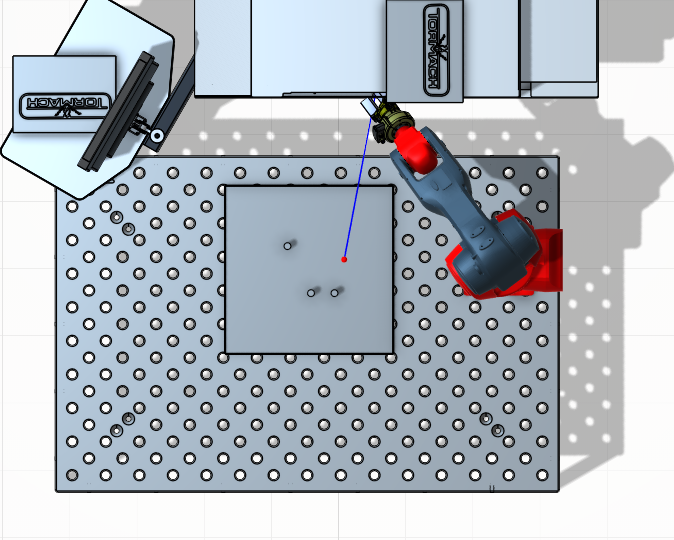
Navigation for robot movement in space. Allows moving the robot in space in various ways. See more
PICK/PLACE. Enables the robot to pick up/place a part.
Click here to expand..
Working principles:
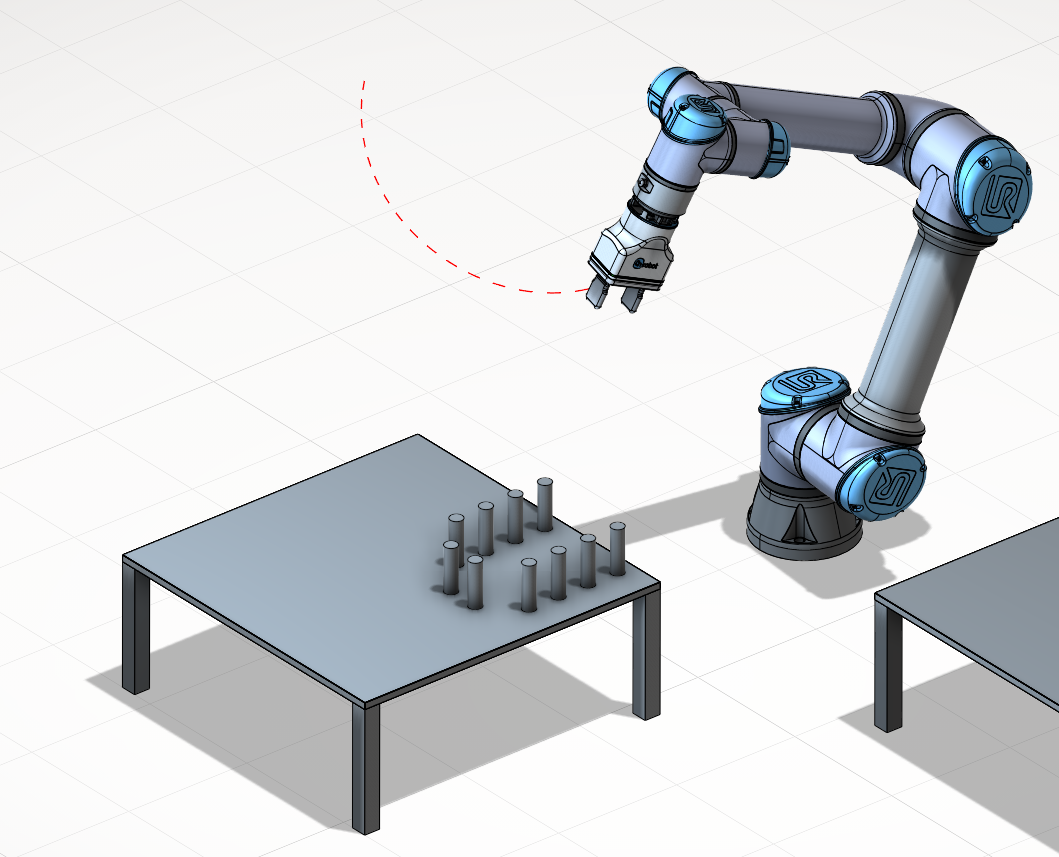
To pick a part, you need to perform a press action on it. The gripper moves to the part’s pickup point. This point was previously defined in the Part mode .
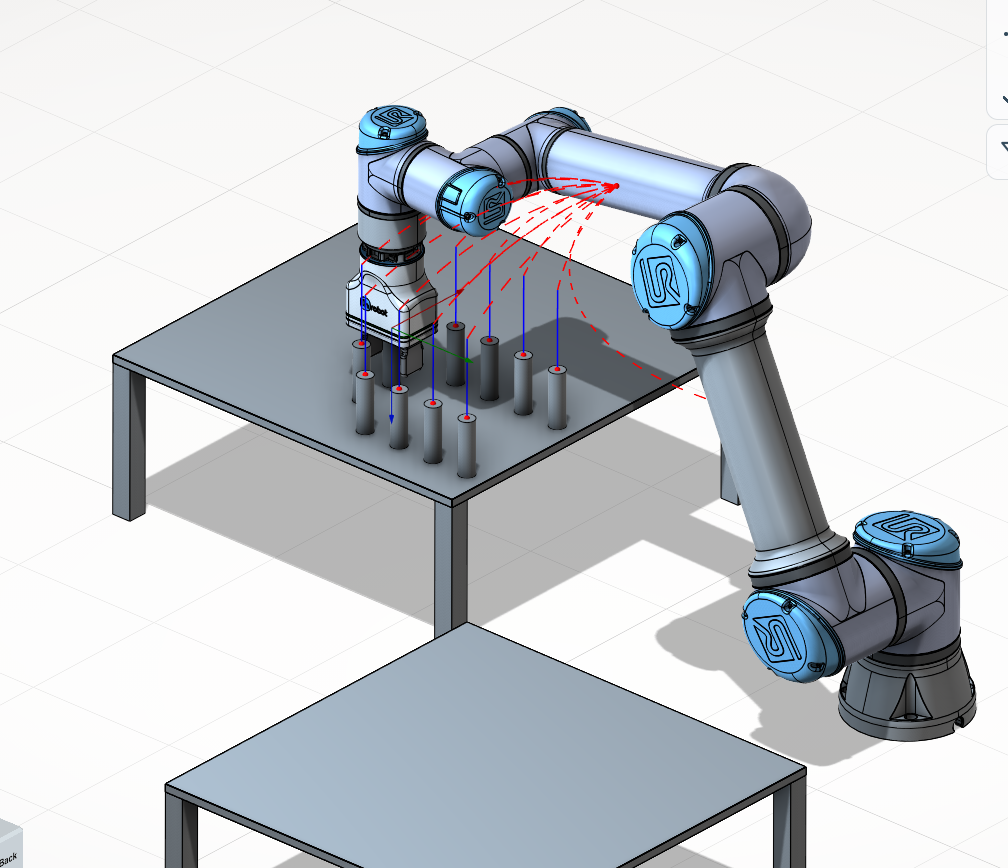
To place a part, you need to click on the attachment point in the tray.
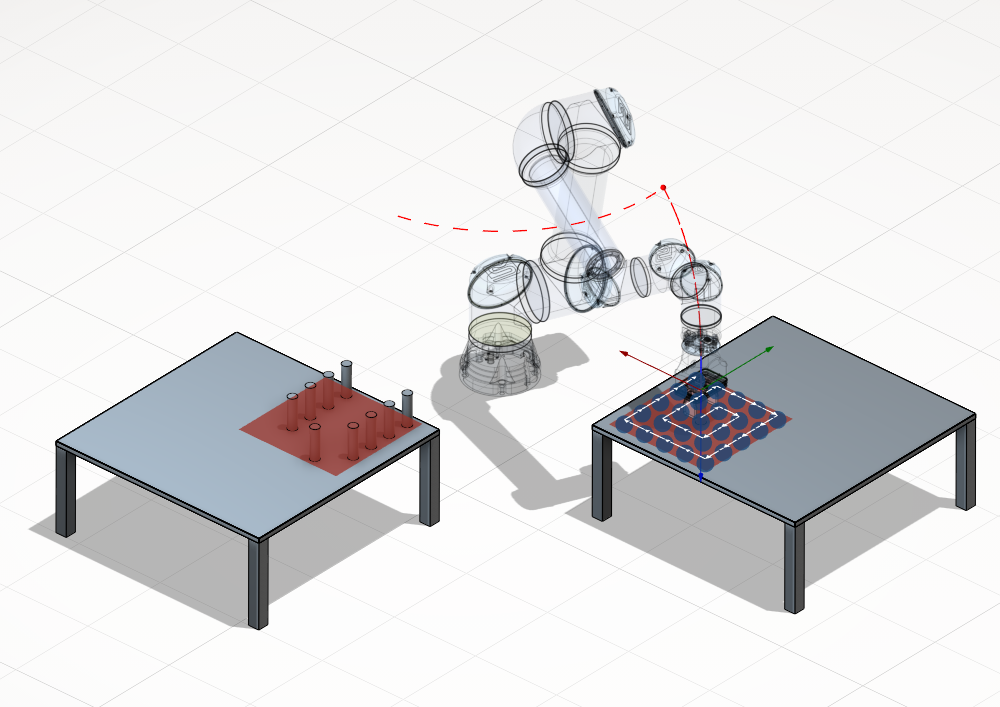
Consists of:
The control panel will change depending on the selected mode.
 1. Pick options. This tab contains the main settings for gripping.
Click here to expand..
List of points for end effectors. Allows selecting a grip point on the end effector.
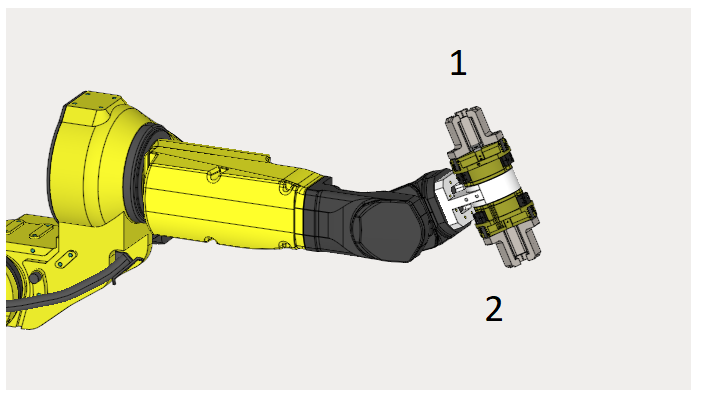
Pick/Holder. Robot’s position during gripping / Robot position during part placement.
Single element. Allows to take either one part or all parts from the tray.
If you select the entire tray, you will see a template of the sequence for transferring parts from this tray in advance.
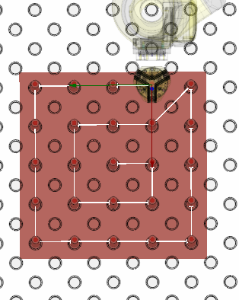
Strategy. Allows selecting a template for the sequence of part transfer from the tray.
Spiral from outside.
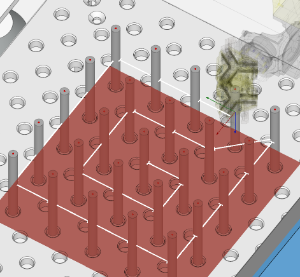
Spiral from inside.
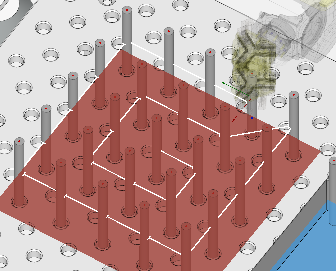
Row.
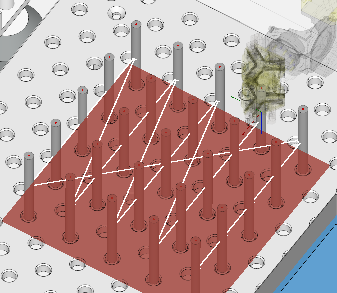
Column.
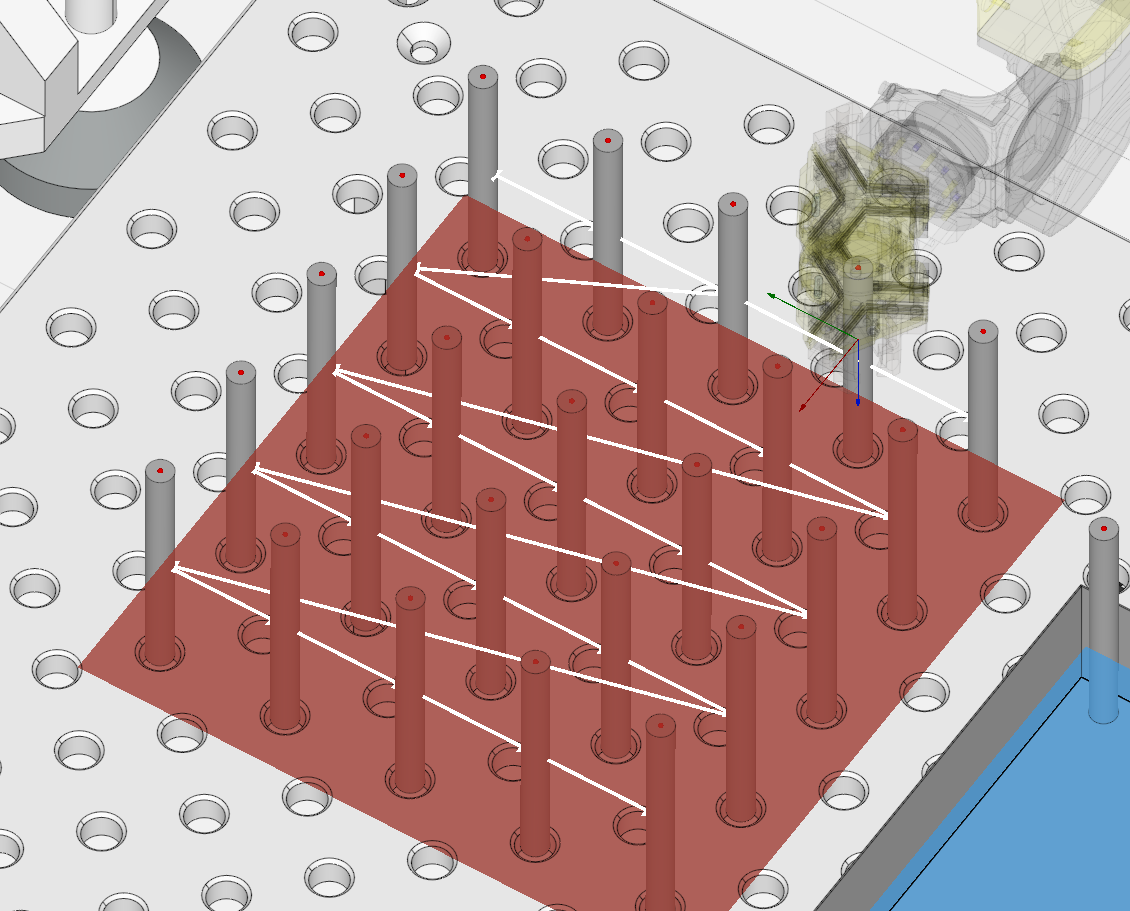
Optimal.
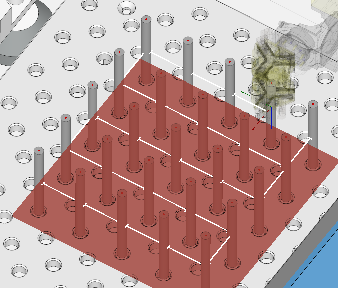
Custom. Set pickup/drop‑off order for parts.
Preferred part. If the tray contains different types of parts (which we have defined in Part mode), this option allows you to specify exactly which ones to take.
Pick point /Place point. List of hold points. Pick points are defined in Parts mode when specifying a part. You can edit them at any time either in this mode or in Parts mode.
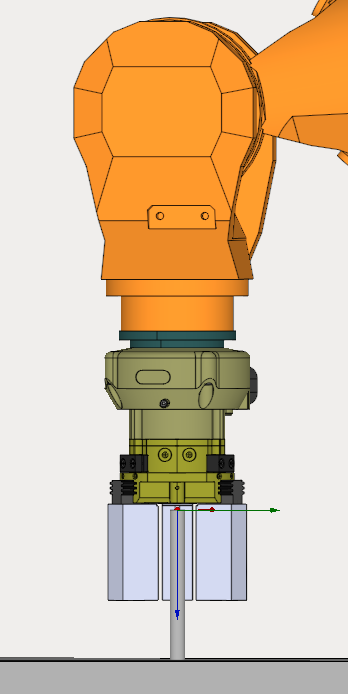
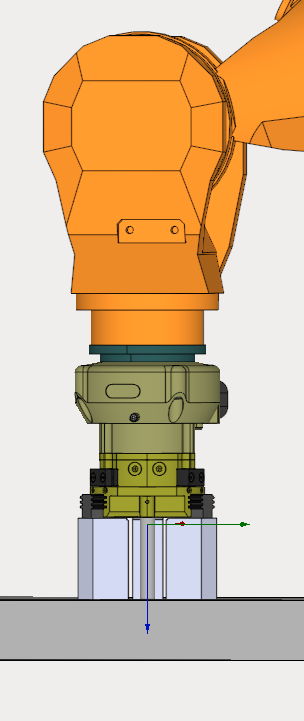
Avoid creases. Prevents axis twisting (robot joint overrotation).
Skip unreachable points. When this option is activated, the robot will only pick up parts that it can reach. If this option is not activated and the robot cannot reach a part, the program will display an error and wait for the operator.
 2. Reference Point Editor. Allows editing the part’s grip point (if gripping with a gap is required).
The Control Panel features navigation for robot movement in space. See more
 3. Additional points for collision avoidance. Allows defining additional points or collision‑avoidance strategies between the pick, place, and clearance points.
 4. Clearance. The position the robot moves to prior to gripping the part.
Click here to expand..
Simple. Allows creating a simple approach to the grip point.
Save move distance. The position the robot moves to prior to gripping the part.
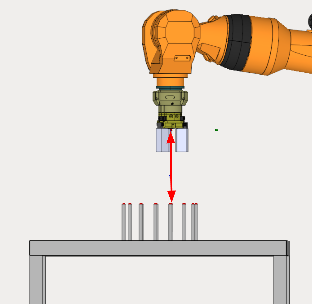
Safe move direction. Allows specifying the axis along which to approach the grip point. (X+,X- and etc)
Safe move speed. Allows slowing down the feed rate when approaching the grip point.
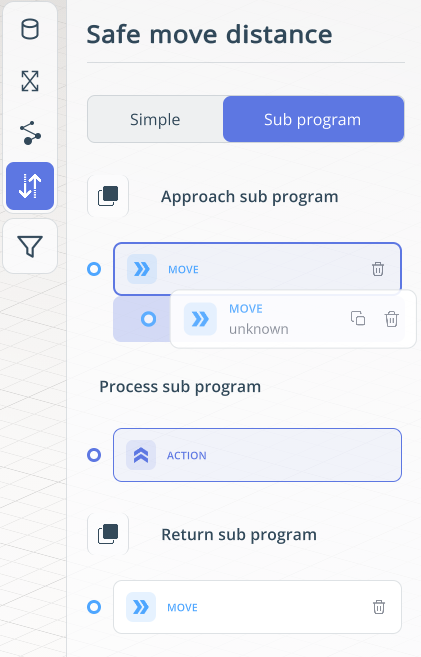
Sub program. Allows creating a complex approach to the grip point (e.g., when the robot needs to retrieve a part from a machine, move to a chip‑blow‑off station, and then place the part).
In this mode, you can create subroutines consisting of multiple steps (similar to a program tree). To do this, create a command using the «Add a command» button and drag the command not into the main tree, but into the subroutine.
You can add commands such as MOVE or IO.
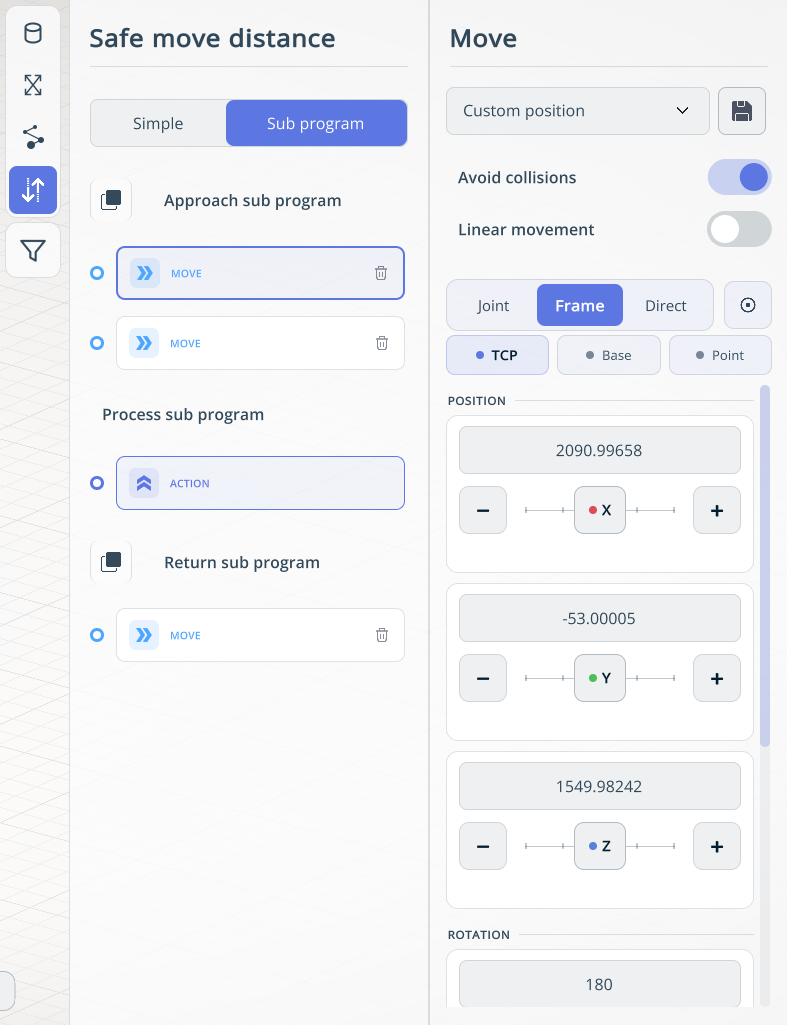
For MOVE commands, an option to move the robot in space is available. See more
IF. Allows looping the program.
Click here to expand..
Working principles:
If the program doesn’t have an IF statement, pick/place is performed for only one part.
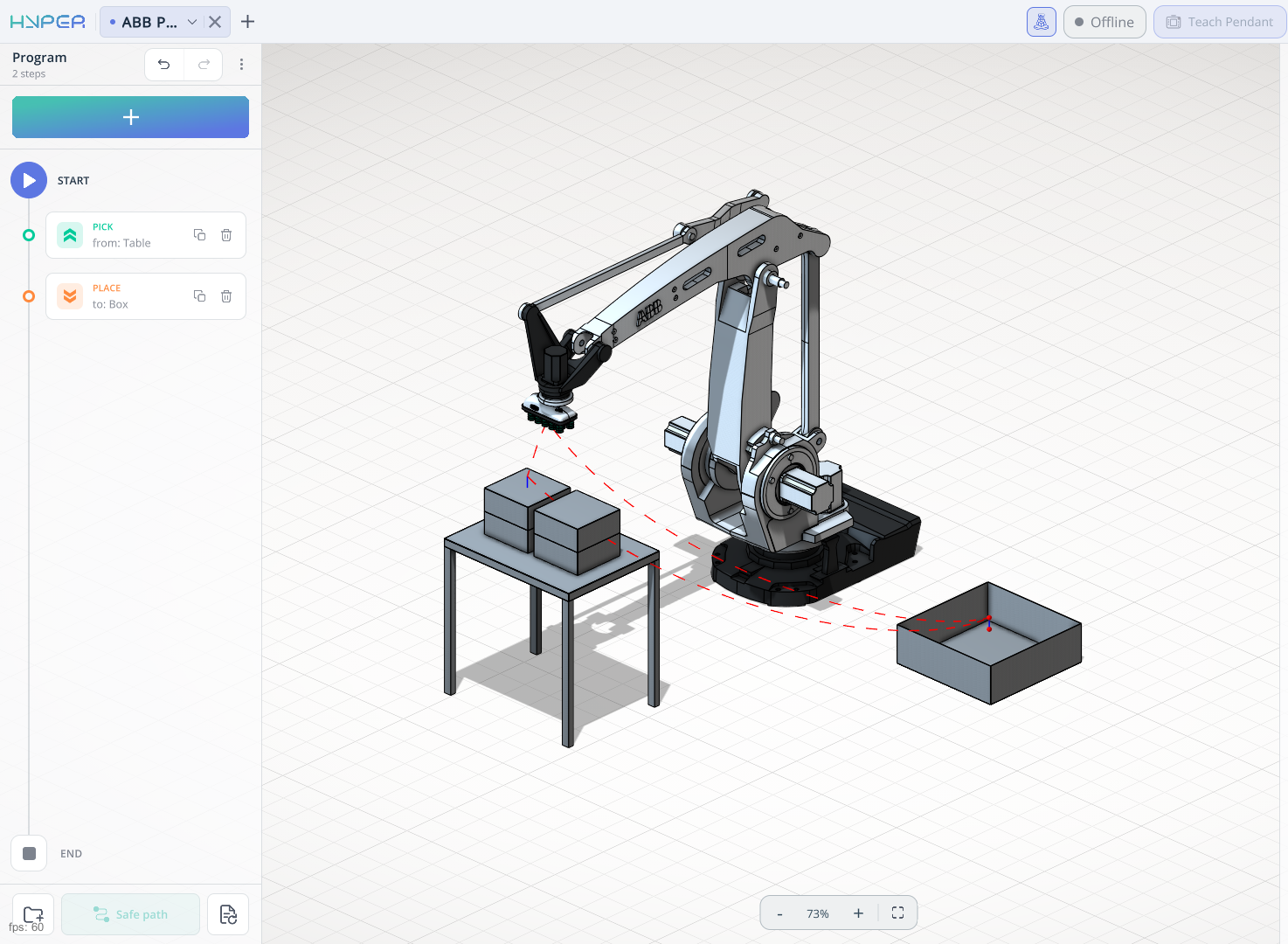
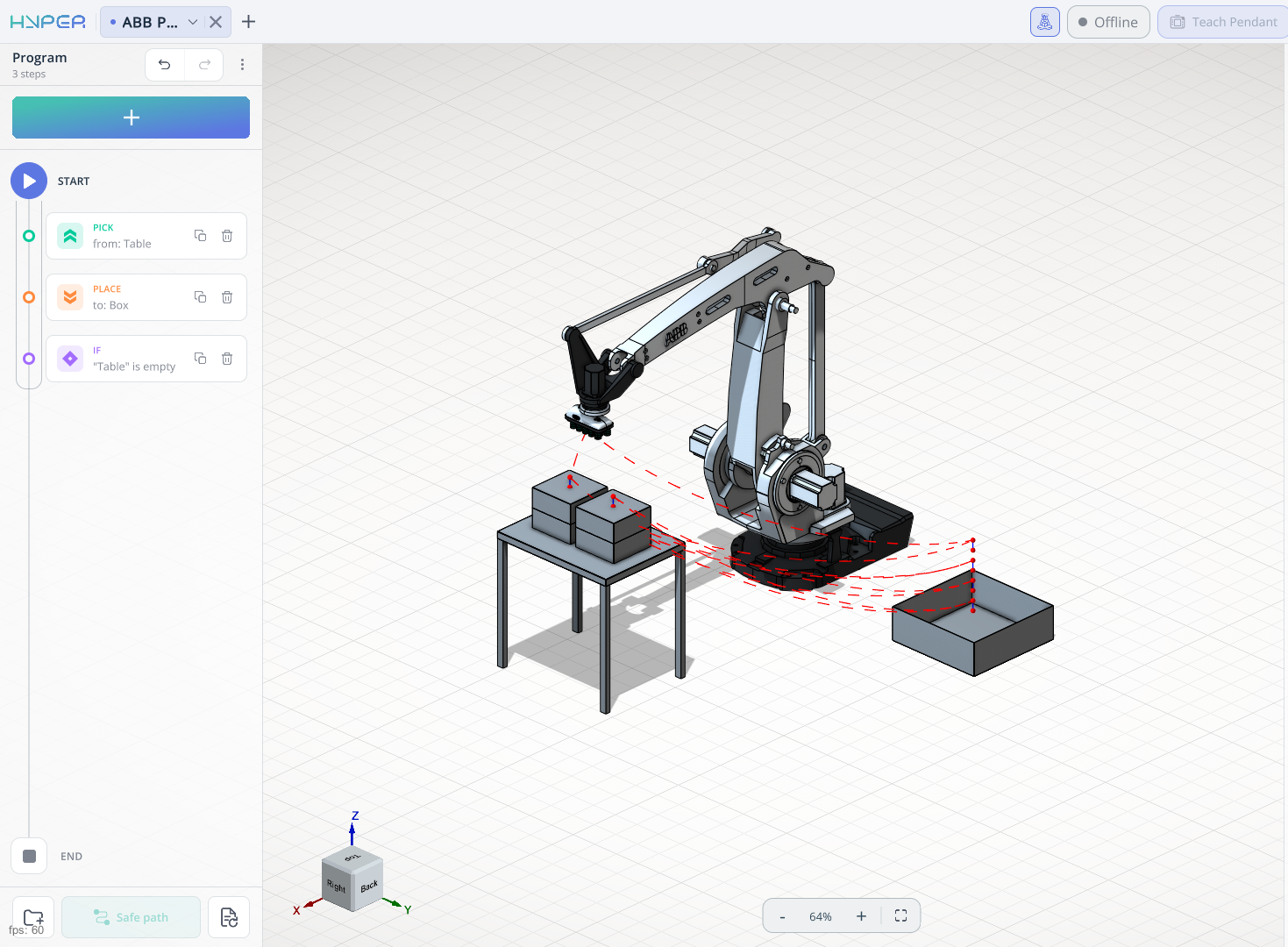
If you use an IF statement, it will loop the program. Meanwhile, the program tree shows which blocks the IF command works with (all commands fit into a single block).
The program works in blocks. In this example, there are 3 blocks.
Block 1 - PICK: In this case, it looks at the tray and checks whether there is a part inside. Then it picks up the part.
Block 2 - PLACE: It looks at the second tray and searches for a place to put the part.
Block 3: - IF: It checks whether the table is empty, and depending on the answer, performs an action for YES or NO.
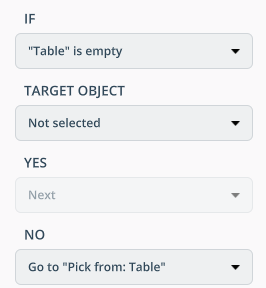
Consists of:
IF. The main condition under which the loop executes. This could be a condition such as Table empty or Table is processed.
TARGET OBJECT. The condition applies only to a specific part.
YES. What should be done if the condition is true?
NO. What should be done if the condition is false?
IO. This is required for managing inputs/outputs (external axes of machines and robots — machine doors, rails, etc.). IO is configured in Project Settings. See more
Click here to expand..
Working principles:
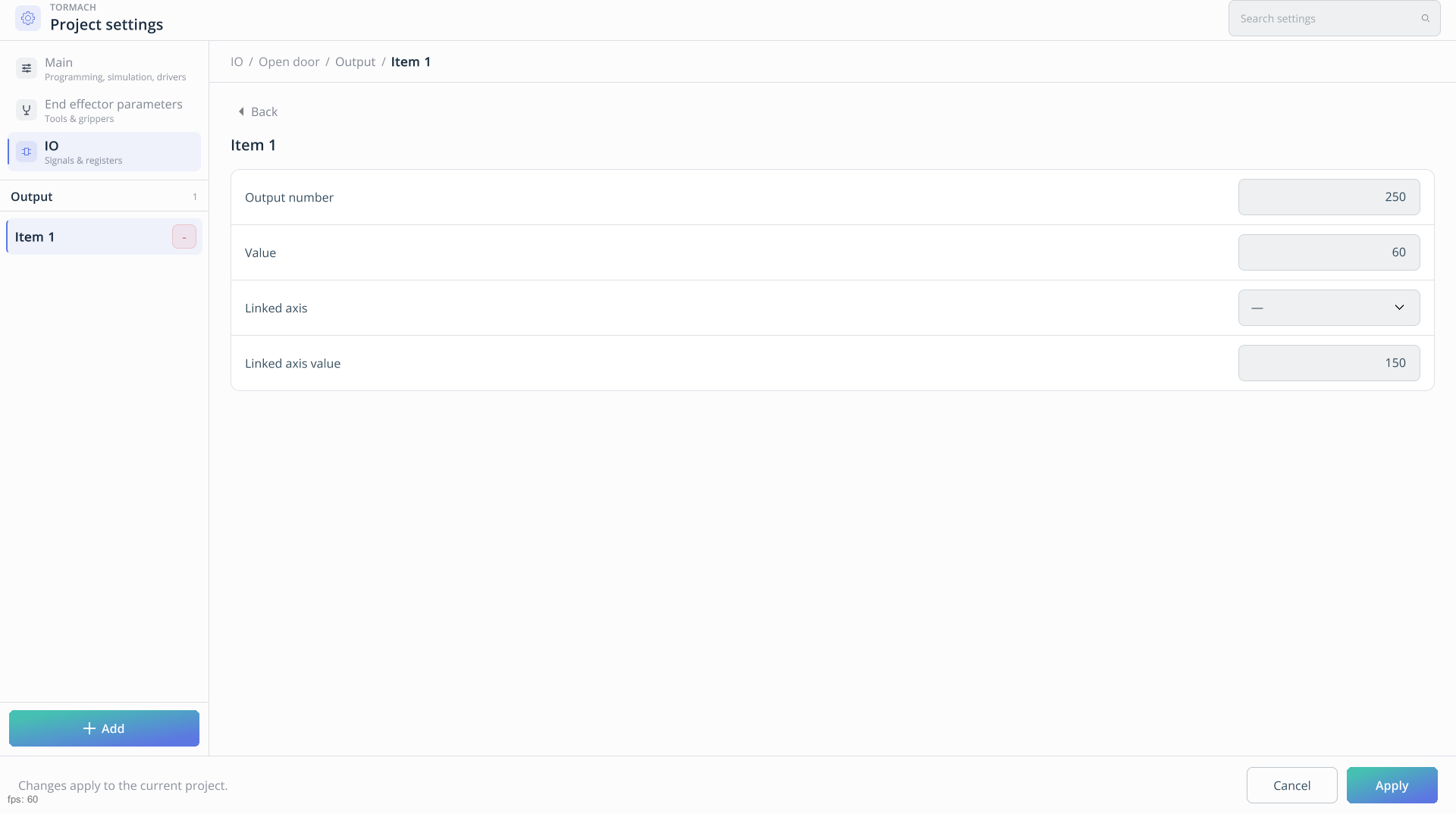
Open Project settings and select IO in the left panel. The settings already contain predefined IO entries. Select an entry, such as Open door, and edit its settings to match your equipment.
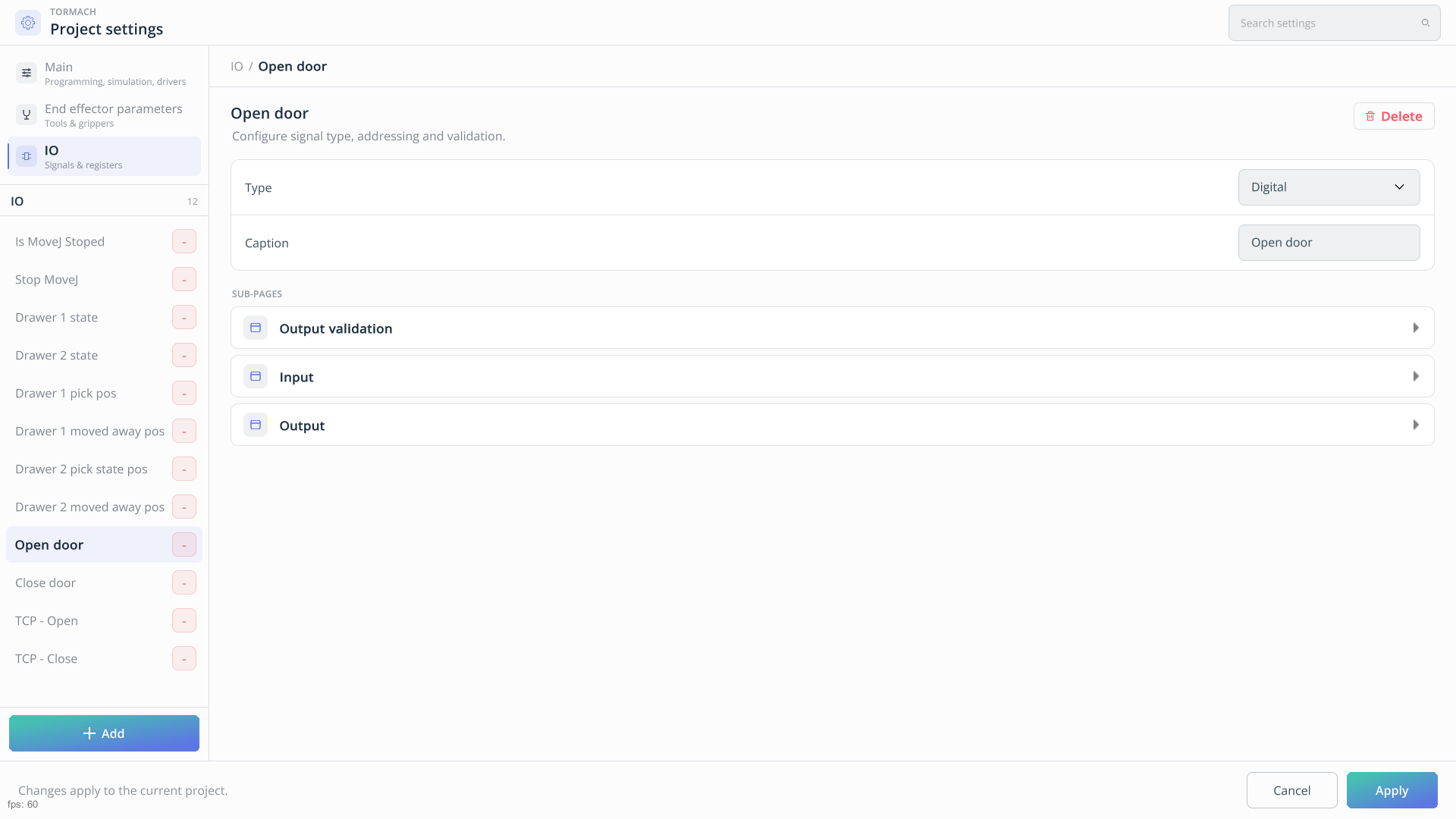
You can also create your own IO entry. Click Add at the bottom of the IO list on the left, then configure the new entry.

For example, let’s create an Open door cnc command in the settings.
You can configure any input and output signals. For example, let’s set output 250 to value 60. You also need to select the linked axis from the list and assign a value to it.
In the IO window, you can select this action.
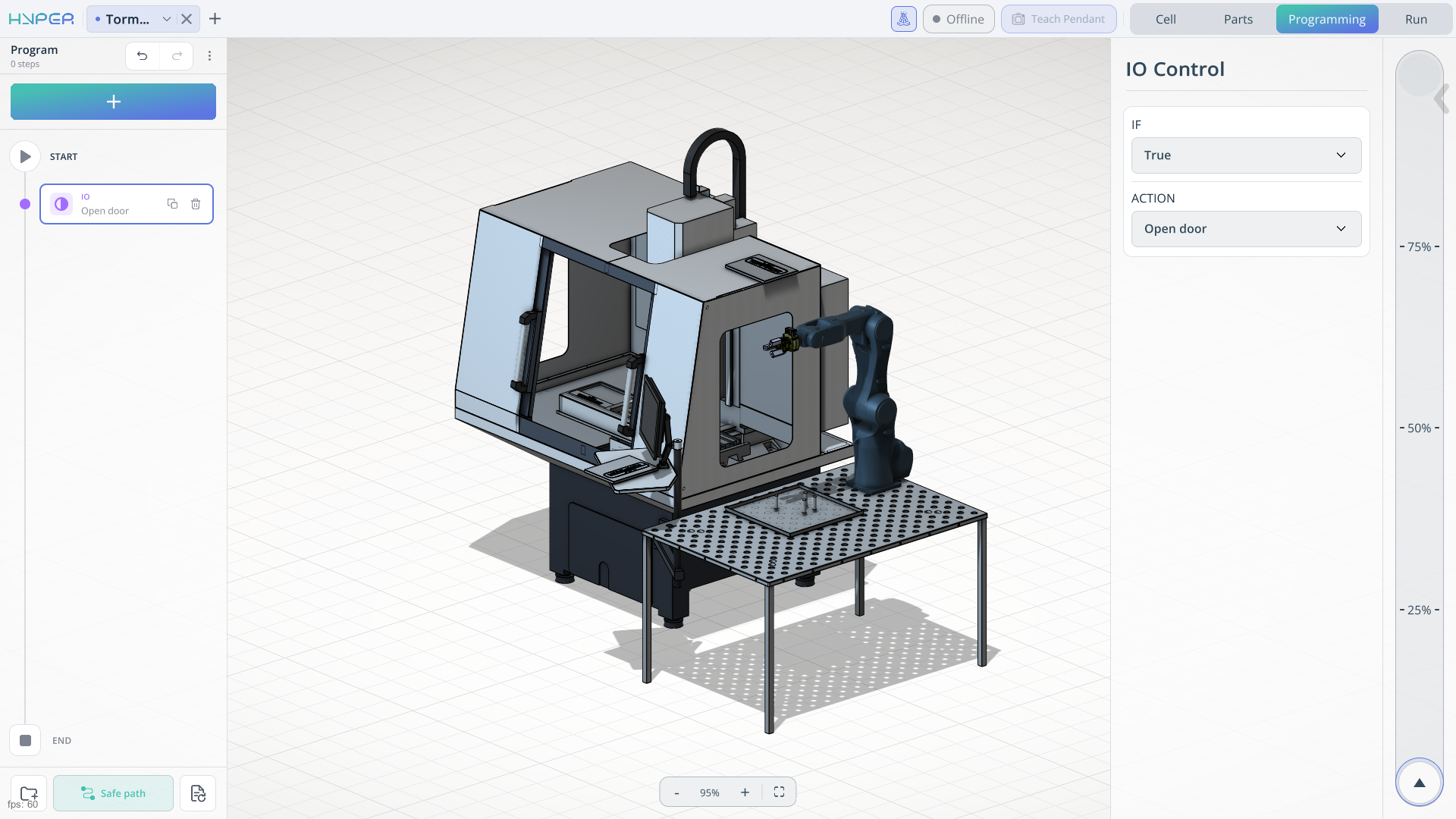
Consists of:
IF. It also allows checking a sensor before executing any IO action (e.g., open the machine door if the sensor indicates the machine is not in operation).
By default, you can trigger IO actions without conditions (True).
ACTION. It allows you to run the macro event that was configured in the project settings.
PAUSE. It allows you to set a delay between actions.
NAILING. The functionality is designed for nail driving.
Click here to expand..
Working principles:
The robot approaches the point, sends a signal to the end effector, which pushes the nail and turns it off.
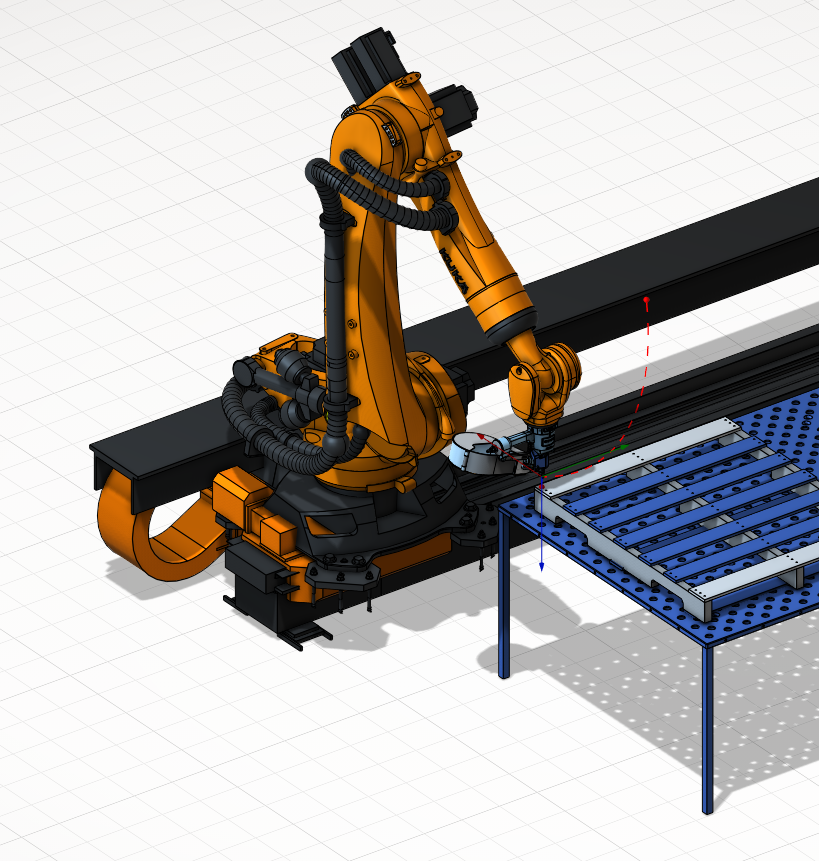
Consists of:
Processing action. It allows you to define an IO event (to send a signal to the end effector for driving nails).
The parameters are the same as in the PICK operation.
WELDING. Joins parts using spot welding or continuous seam welding.
Click here to expand..
Working principles:
For spot welding, the robot positions the welding tool at each specified point and performs a weld. For seam welding, the robot moves the tool continuously along the specified seam while welding.
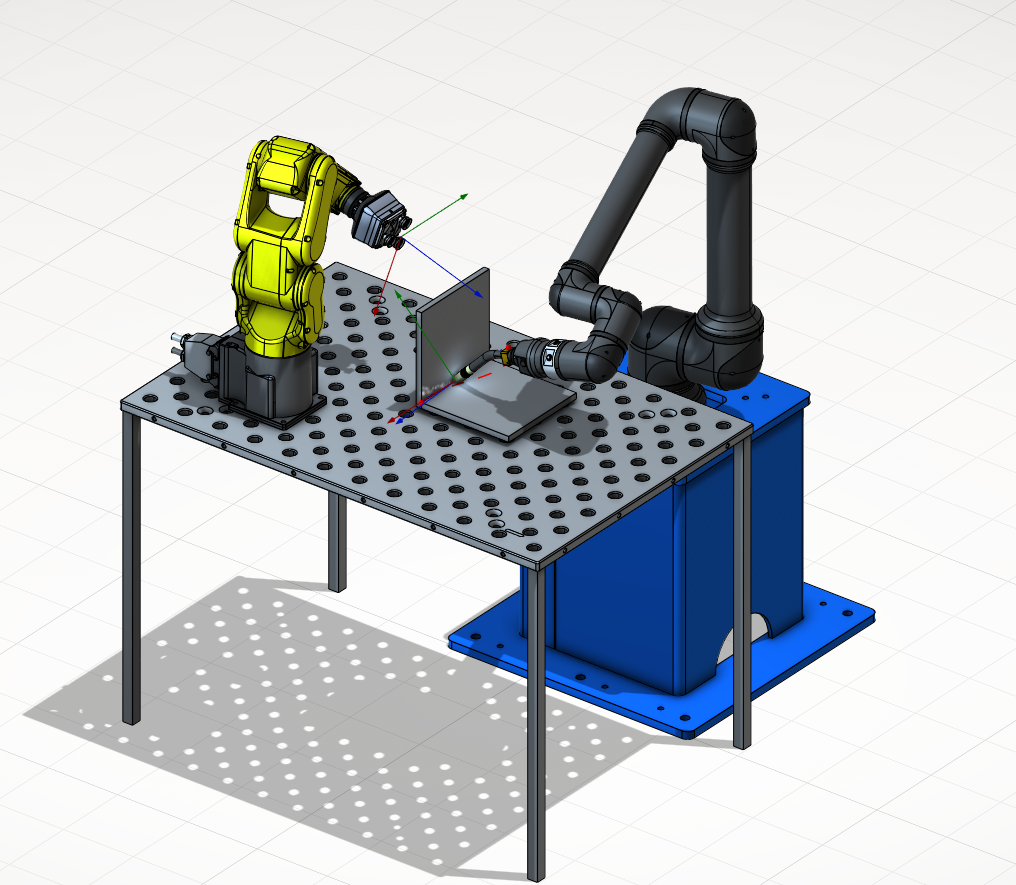
GLUING. Applies adhesive to bond parts together.
Click here to expand..
Working principles:
The operation follows the same point-based or continuous-path approach as welding. The robot positions the dispensing tool at specified points or moves it along a specified path while dispensing adhesive. The adhesive is applied to the bonding surfaces to join the parts.
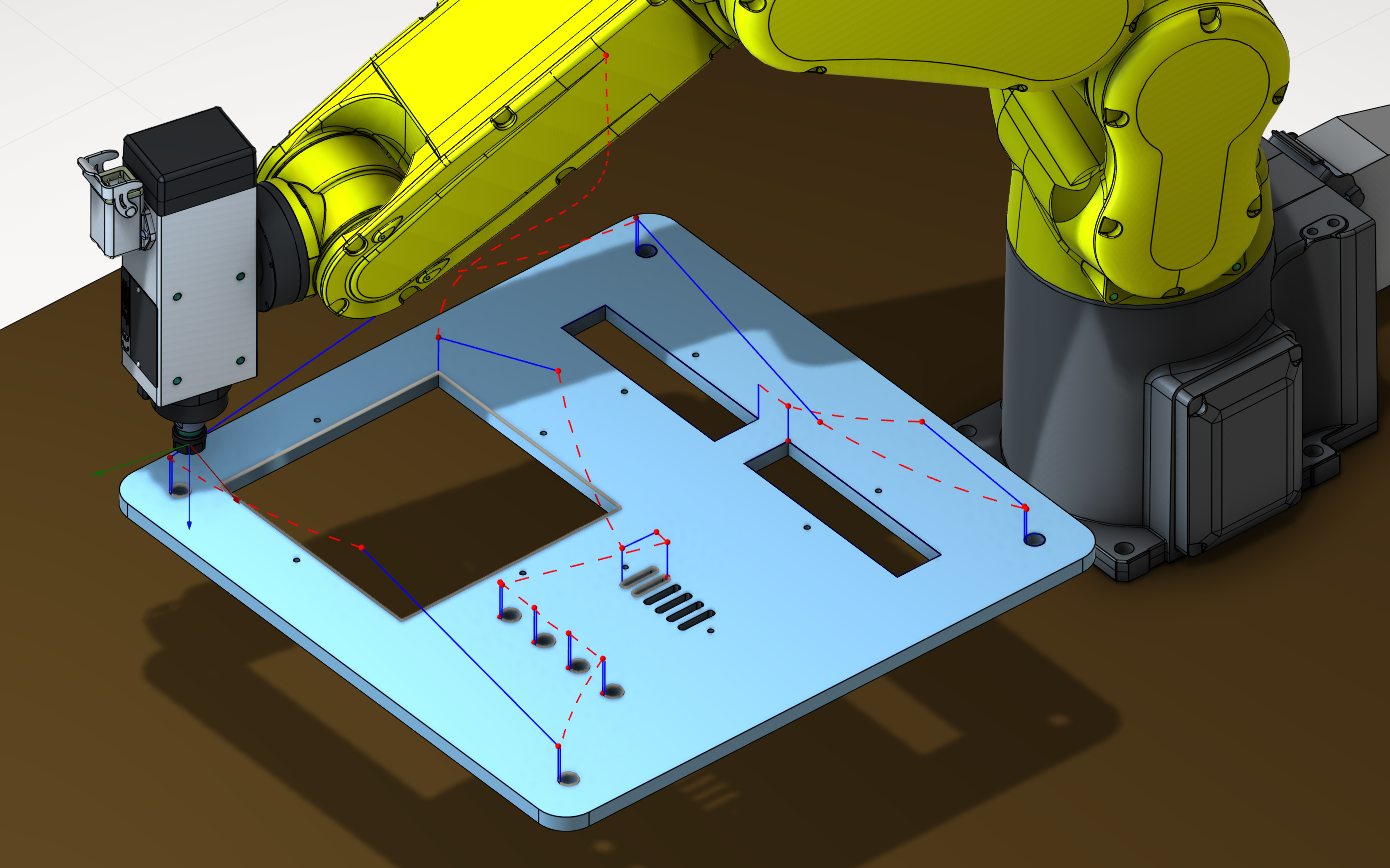
POLISHING. Performs a continuous polishing pass along a specified seam. The robot guides the polishing tool along the seam to finish its surface.
TRAJECTORY. Imports a trajectory from a CAM system into ENCY Hyper. A simple way to do this is to import a saved CAM project, starting with a cell created in MachineMaker.
Click here to expand..
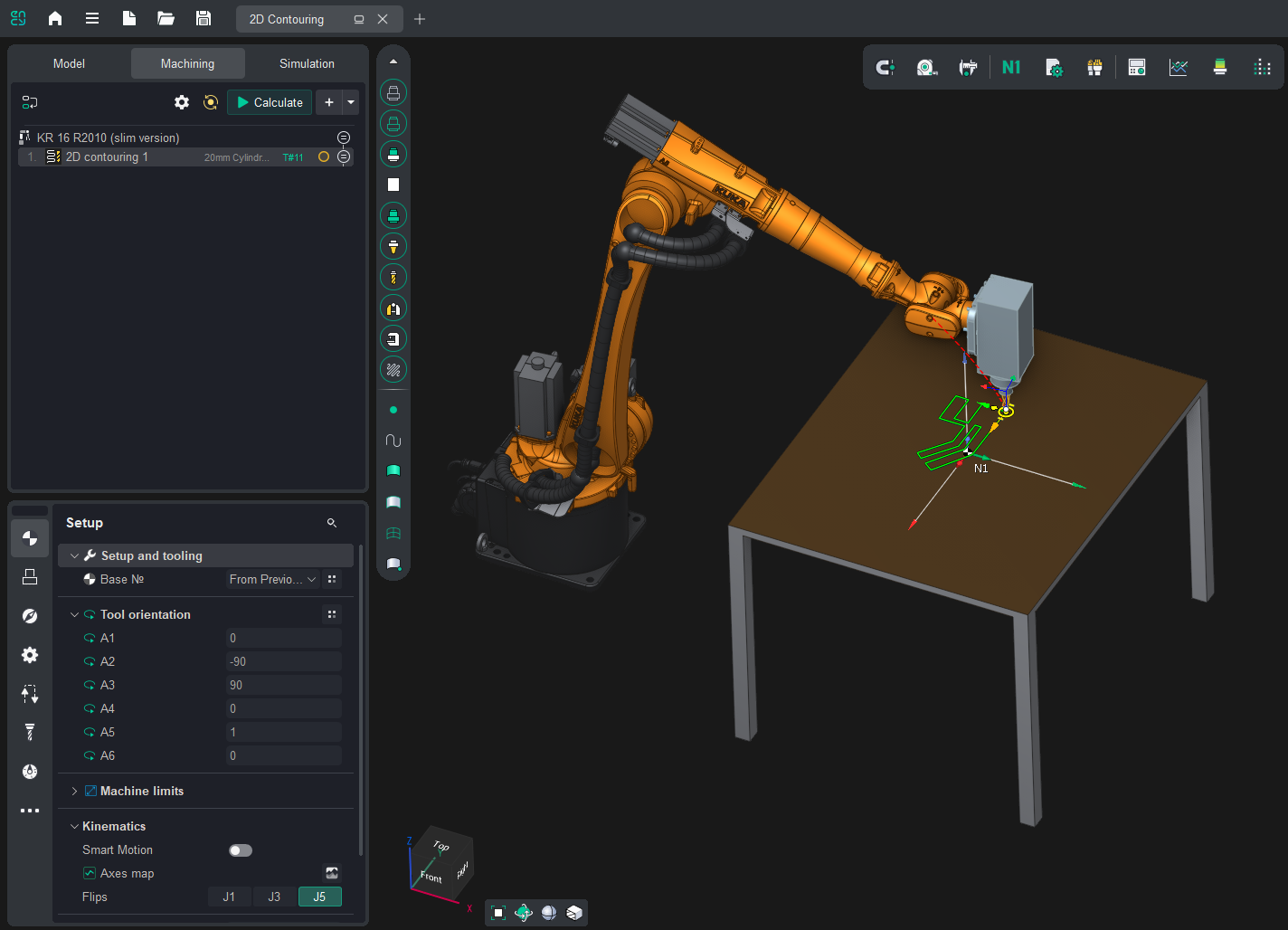
1. Prepare the cell and CAM operation. Create the cell in MachineMaker, save the project in .mma format, and click the button to export it to the CAM system. In the CAM system, create the machining operations. This example uses a simple 2D contouring operation.
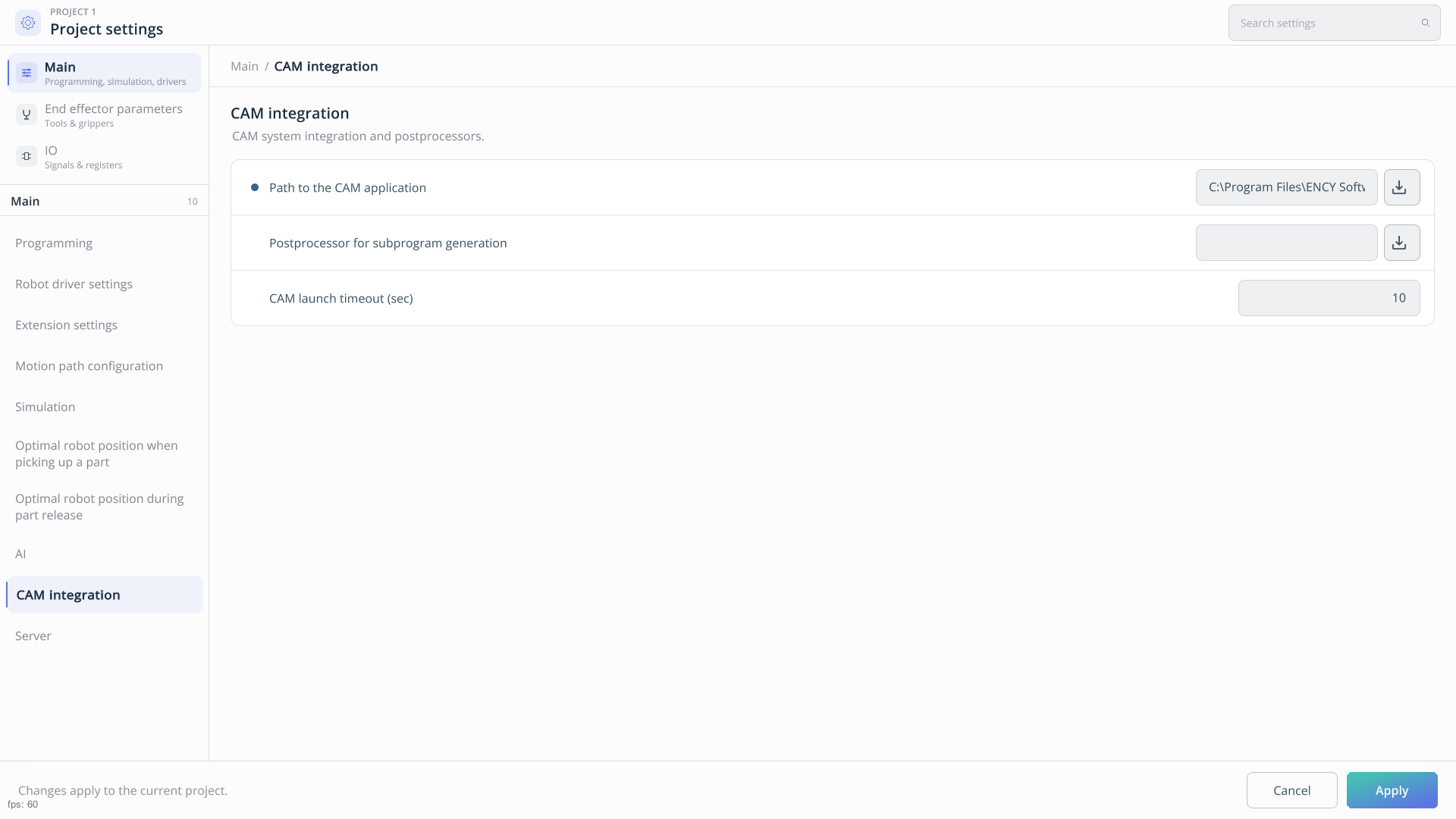
2. Save the CAM project and configure the application path. Save the project in the CAM system. In ENCY Hyper, open Project settings > Main > CAM integration. In Path to the CAM application, specify the path to your CAM application shortcut and click Apply.
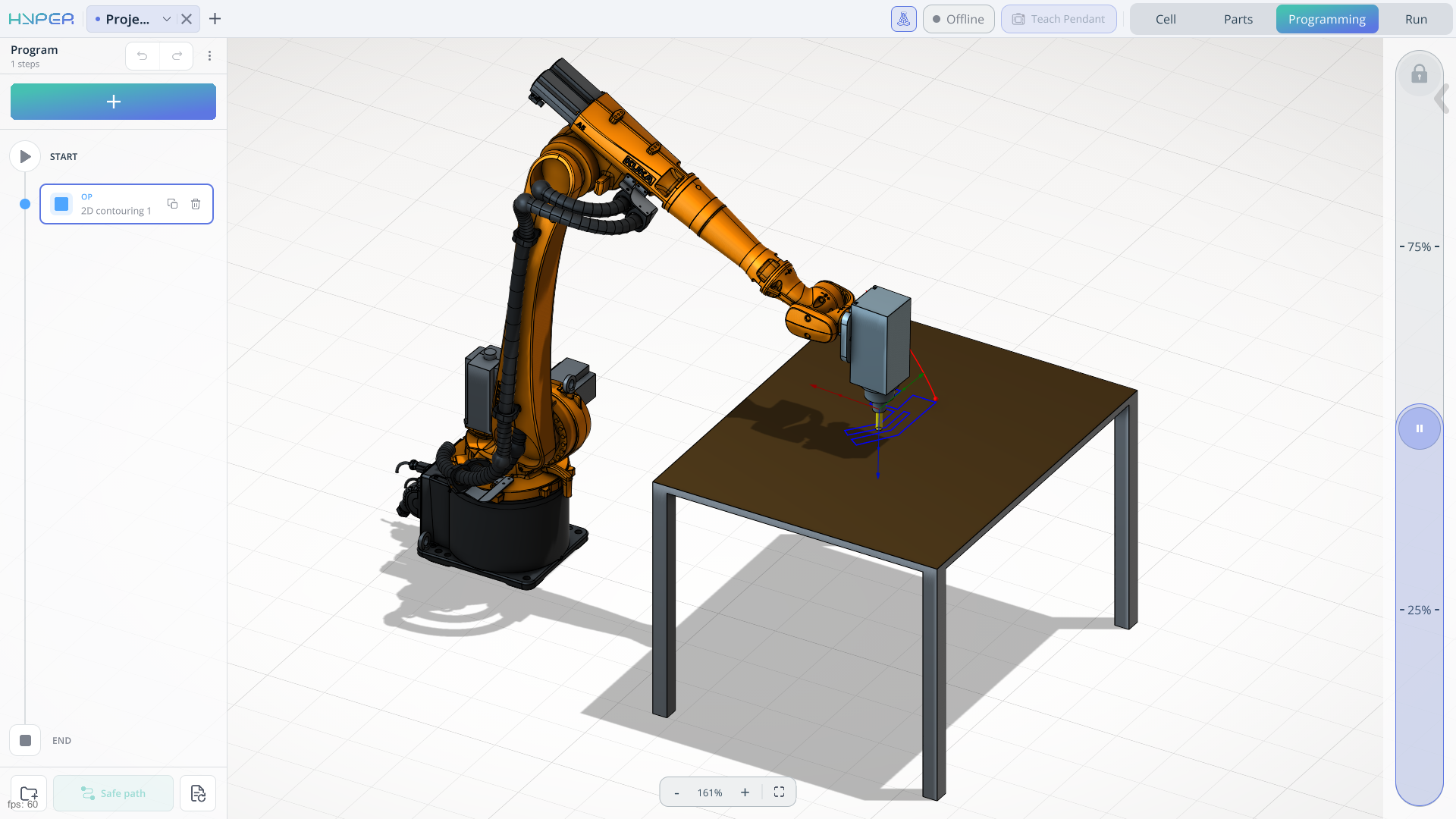
3. Import the trajectory. In Programming Mode, create a Trajectory operation and select the saved CAM project in the file browser. ENCY Hyper launches the CAM system and retrieves the trajectory from the operation you created. The imported trajectory then appears in ENCY Hyper, as shown below.